

A WMS data migration guide should tell you exactly what data to pull, how to clean it, and in what order to load it so your warehouse never has to stop moving product. With Shipider, migration typically runs through a structured Excel or CSV import for SKUs, locations, and starting balances, followed by a short parallel-run period where counts are verified with maker-checker before you fully retire the old system. The work is less about the software and more about the discipline of getting your source data honest before it goes anywhere.
Most teams underestimate this project because they think of it as a technical task. It is really a data quality project with a technical step at the end. If your spreadsheet or legacy WMS has been patched, overridden, and manually adjusted for years, migration is your one chance to clean it before it follows you into a new system.
What data actually needs to move
Not everything in your old system deserves a seat in the new one. Before you touch an import template, separate your data into three buckets: what you must bring, what you should archive, and what you can leave behind.
- Must bring: active SKUs, current on-hand quantities by location, warehouse location structure (zones, aisles, bins), active customer or client records if you run a 3PL, open orders in flight, and lot or serial data for anything regulated or perishable.
- Should archive: closed orders, historical adjustments, old vendor records tied to discontinued SKUs. Keep these as a static export in case of an audit, but do not import them as live data.
- Can leave behind: duplicate SKUs created by years of manual entry, dead stock with zero balance, and any custom fields nobody has looked at in two years.
If you are still deciding whether to move off spreadsheets at all, that decision belongs in a separate conversation: see WMS vs spreadsheets: when Excel stops being enough. This guide assumes you have already decided and are now planning the move itself.
Spreadsheet migration vs legacy WMS migration
The two starting points create very different projects. A spreadsheet has no enforced structure, so your main risk is inconsistency. A legacy WMS has structure, but it is often locked behind a vendor export process, and the data model rarely maps cleanly onto a new system.
| Factor | Migrating from spreadsheets | Migrating from a legacy WMS |
|---|---|---|
| Main risk | Inconsistent SKU naming, duplicate rows, stale formulas | Data locked in a proprietary export format or vendor-controlled database |
| Data cleanup effort | High: manual entry errors accumulate over years | Medium: structure exists but field mapping takes work |
| Export method | Direct CSV or XLSX export, usually self-service | Often requires a support ticket or a paid export fee from the old vendor |
| Typical timeline | Days once data is cleaned | One to a few weeks, largely waiting on vendor export and parallel run |
| Biggest surprise | Location data was never tracked, so bin assignments start from zero | Historical audit trail usually does not transfer, only current balances do |
Either way, the destination system matters. A platform built around Excel import for warehouse setup turns a rough spreadsheet into a working warehouse in hours rather than weeks, because the import tool expects messy source data and gives you a chance to map and correct it on the way in.
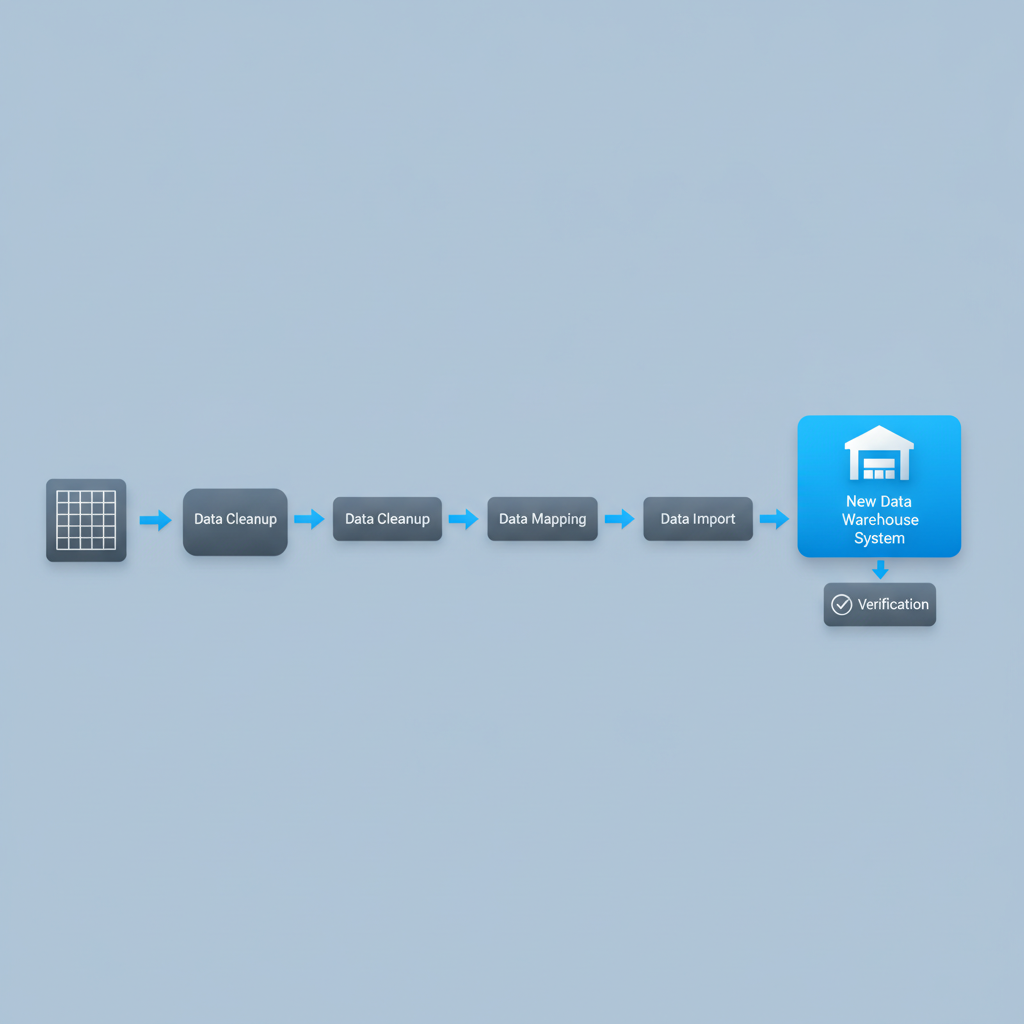
The migration process, step by step
1. Audit what you actually have
Export everything first, even the data you plan to archive. Run a full inventory count against your current system of record before you start, physical count against whatever numbers your spreadsheet or legacy WMS claims. You want a clean baseline, not a moving target. If counts have drifted for a while, this is also a good moment to read through the inventory reconciliation process before you migrate drift into a new system.
2. Clean before you map
Deduplicate SKUs, standardize naming conventions, and decide on one unit of measure per item. If the same product exists under three different SKU codes because three different employees created it over the years, pick one and retire the others now. Cleaning after import is far more painful because you are now cleaning live transactional data instead of a static file.
3. Map fields to the new structure
Your spreadsheet columns or legacy export fields need to line up with the new system's structure: SKU, description, unit of measure, warehouse location, lot or batch number if applicable, reorder point, and starting quantity. Shipider's import template handles this mapping directly, so you are matching your existing columns to defined fields rather than reformatting your source file from scratch.
4. Build your location structure first
Import locations before inventory. If you try to load SKU balances into a system that has no warehouse locations defined yet, you end up with everything dumped into a single catch-all bin, which defeats the purpose of moving to a real WMS. Define zones, aisles, and bins, even a rough version, before you load a single unit of stock. If you have not settled on a layout yet, warehouse slotting and location strategy covers how to set that structure up properly.
5. Import in stages, not all at once
Load SKUs and locations first, validate them, then load starting inventory quantities, then open orders if any are in flight. Importing everything in one pass makes errors hard to isolate. Staged imports let you catch a bad SKU mapping before it cascades into every quantity record behind it.
6. Verify with a physical count, not a trust exercise
Once data is loaded, do not assume the numbers are right just because the import ran without errors. Run a cycle count against a sample of locations and compare the system quantity to what is physically on the shelf. Shipider's maker-checker verification is useful here too: have one person perform the count and a second person confirm it before the balance is marked final, the same two-step process you will use for everyday operations going forward.
7. Run parallel for a short window
For a week or two, keep recording transactions in both the old system and the new one if your volume allows it. This is the safety net that catches mapping errors before you are fully dependent on the new system. For a business running tight margins on staff time, even a partial parallel run (new system for receiving and picking, old spreadsheet as a shadow copy) is worth the extra effort.
8. Cut over and retire the old system
Once your parallel run numbers match consistently, set a cutover date, communicate it to everyone on the floor, and stop entering new transactions in the old system. Archive its final export and keep it accessible for audit purposes, but treat the new system as the single source of truth from that date forward.
Common migration mistakes
- Migrating bad data as-is. If your spreadsheet has had negative quantities, duplicate SKUs, or untracked adjustments for years, importing it unchanged just moves the mess into a new interface.
- Skipping the physical count. A migration is the best excuse you will ever have to do a full count. Skipping it means you start the new system already wrong.
- No location structure before inventory load. Loading quantities before bins exist forces a second cleanup pass later.
- Underestimating legacy export friction. Some legacy WMS vendors charge for data exports or slow-walk the request. Start that conversation early, ideally weeks before your planned cutover.
- Trying to migrate everything in one weekend. Staged migration with a parallel run catches errors. A single big-bang cutover does not give you time to notice a mapping problem until it has already caused a mis-ship.

How Shipider handles the migration specifically
Shipider's import tooling is built around the reality that most incoming data is messy. You upload a CSV or spreadsheet, map your columns to SKU, location, quantity, and lot fields, and the system flags rows that look wrong (missing unit of measure, duplicate SKU codes, quantities that do not match expected formats) before anything is committed. Once your SKU and location structure is loaded, camera-based barcode scanning on any phone lets your team verify incoming stock against the new system during the parallel run, no scanner guns or extra hardware to source and configure first.
If your legacy system is already synced to an ERP, moving the WMS layer does not have to mean rebuilding that connection from zero. See ERP sync without double entry for how that integration typically gets rebuilt, and scoped API keys for warehouse integrations if your migration also involves reconnecting other systems in your stack. For 3PLs migrating multiple client accounts at once, multi-tenant isolation means each client's data, locations, and history stay separated by structure rather than by convention, so a migration mistake on one account cannot bleed into another.
Because every count during the migration can go through maker-checker verification, and every adjustment is logged on a real audit trail from day one, you are not starting the new system with a clean slate that immediately goes dark. You are starting it with the same evidence trail you will rely on for every receiving event, pallet move, and dispute going forward, covered in more depth in the audit trail cornerstone guide.
How long should this actually take
For a spreadsheet migration with a few hundred SKUs and a handful of locations, data cleanup is usually the longest step, often a few days to a week depending on how messy the source file is. The import and verification itself can run in a single day once the data is clean. For a legacy WMS migration, add time for the vendor export process itself, which is often the real bottleneck, not the import. A full breakdown of what drives timeline length, independent of which system you are moving data from, is covered in the WMS implementation timeline guide. If you are still building your evaluation criteria before committing to a vendor, the WMS buying checklist covers what to confirm about import and migration support before you sign anything.
Frequently asked questions
How long does a WMS data migration usually take?
A spreadsheet-based migration with clean source data can be imported and verified in a day, though data cleanup beforehand often takes a few days to a week. Migrating from a legacy WMS usually takes one to a few weeks, mostly due to waiting on the old vendor's export process and running a parallel verification period.
Do I need to do a full physical inventory count before migrating?
Yes. A migration is the best opportunity to correct accumulated drift between your records and what is actually on the shelf. Migrating unverified balances just carries existing errors into the new system under a new interface.
What data should I leave out of the migration?
Closed orders, discontinued SKUs with zero balance, and old custom fields that are no longer used should be archived as a static export rather than imported as live data. Bringing over everything just adds clutter and increases the chance of mapping errors.
Can I migrate from a spreadsheet without hiring a developer?
In most cases, yes. A well-built import tool maps your existing spreadsheet columns to the new system's fields directly, so the work is mostly cleaning your source data and reviewing flagged rows rather than writing custom scripts or hiring outside help.
What happens to my old system's audit history during migration?
Historical audit trail data from a legacy WMS typically does not transfer automatically, since most vendors export only current balances and records, not full transaction logs. Keep a final export of your old system's history for audit purposes, and expect your new system's audit trail to start fresh from the cutover date forward.
If you are planning a migration and want to see how the import and verification process actually works before you commit, create a free Shipider account and run a test import with a sample of your own data.